PDF Ingestion
Upload and process documents directly inside Snowflake.
Use this page when you want to add new PDF or ZIP files to your dataset.
Upload & Processing Interface
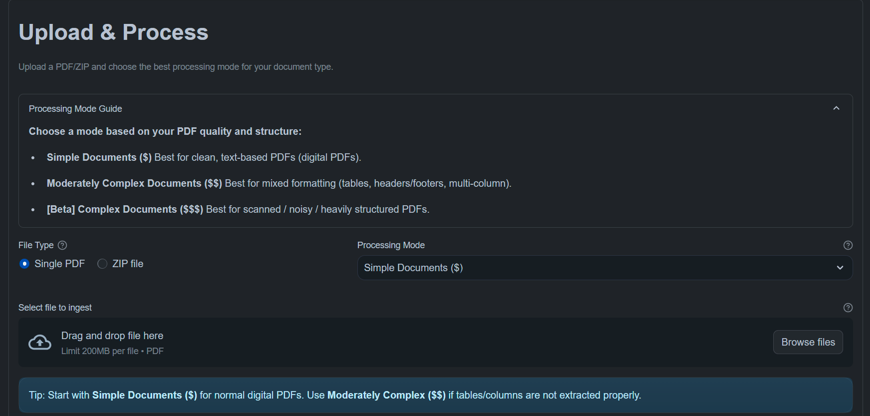
Upload files and select the appropriate processing mode.
Supported formats:
- Single PDF file
- ZIP archive containing multiple PDFs
Processing Modes
Choose a mode based on document quality and structure.
| Mode | Best For | Use When |
|---|---|---|
| Simple ($) | Clean digital PDFs | Text is selectable and well-formatted |
| Moderate ($$) | Mixed layouts | Tables, headers, multi-column text |
| Complex ($$$) | Scanned / noisy PDFs | Images, poor OCR, complex layouts |
Start with Simple. Upgrade only if extraction quality is poor.
File Upload Options
Single PDF
Use when uploading one document.
ZIP File
Use when uploading multiple PDFs in batch.
Each PDF inside the ZIP is processed separately.
Limit: 200MB per file
Requirements
Before uploading, ensure:
CREATE TABLEpermissions on your target schema- Sufficient data access grants if the tables are already created as outlined in access grants.
Large File Processing
Staging from Local Environment
For files (PDF/Zip) greater than 200MB, you can process them directly through SnowSQL staging:
-
Stage the file using SnowSQL:
PUT file://path/to/your/large-file @my_stage; -
Process staged files through the ZettaQuant application interface
Note: For detailed information on staging files from your local environment, refer to the Snowflake documentation on PUT command.
Best Practices for Large Files:
- Compress files before staging to reduce transfer time
- Use internal stages for better performance
- Consider splitting very large archives into smaller batches
Troubleshooting
-
Upload or ingestion fails → Check execution details in Telemetry & Logs
-
Permission errors → Confirm required privileges are applied in Data Access Grants
-
No output tables created → Verify Data Configuration is completed and tables exist in Snowflake
-
Poor text extraction / missing tables → Try switching to Moderate or Complex processing mode
-
ZIP file not processed → Ensure the ZIP contains valid
.pdffiles only -
Duplicate document warning → File already exists in the dataset and was skipped
-
Slow or stalled processing → Verify warehouse size and GPU compute pool status
-
PDF preview not loading → Refresh the page and reselect the uploaded file
Next Steps
After ingestion:
- ZQ Classify — Run analysis
- Telemetry — Monitor processing